Comprehensive CSV Importer Guide
Complete guide to importing employee data via CSV file upload.
On This Page
Are you tired of the manual and time-consuming process of entering employee data into your occupational health testing platform? Look no further than BlueHive's CSV importer! With our user-friendly tool, importing employee data becomes a breeze.
Introduction
Employee data is a crucial aspect of any occupational health testing program. In today's fast-paced business environment, importing employee data from various sources can be a daunting task, especially when dealing with large amounts of data. That's where BlueHive's CSV importer comes in.
Key Features
- Map fields once - Once you have completed the field mapping process, the next time you import a CSV, it will update any existing employee data and import new employees automatically
- Employee active status - Support for an active status field that can activate or deactivate employees during import
- Extended fields - Add as many custom fields as you need, including your own employee ID
- No data modification required - Import your data as-is without modifying the output from your HR provider
- Enterprise SFTP - Our enterprise plan offers SFTP and automatic importing of CSVs upon request
Step-by-Step Import Instructions
Step 1: Navigate to Employee Management
Click on the "Employees" tab in your BlueHive employer portal.
Step 2: Initiate Import
Click on "Import" to access the data import functionalities.
Step 3: Choose CSV Import
Click on "Import from CSV" to specify that you'll be uploading employee data in CSV format.
Step 4: Select Your File
Either click "Select file to upload" or drag your CSV file into the gray box.
Step 5: Data Selection
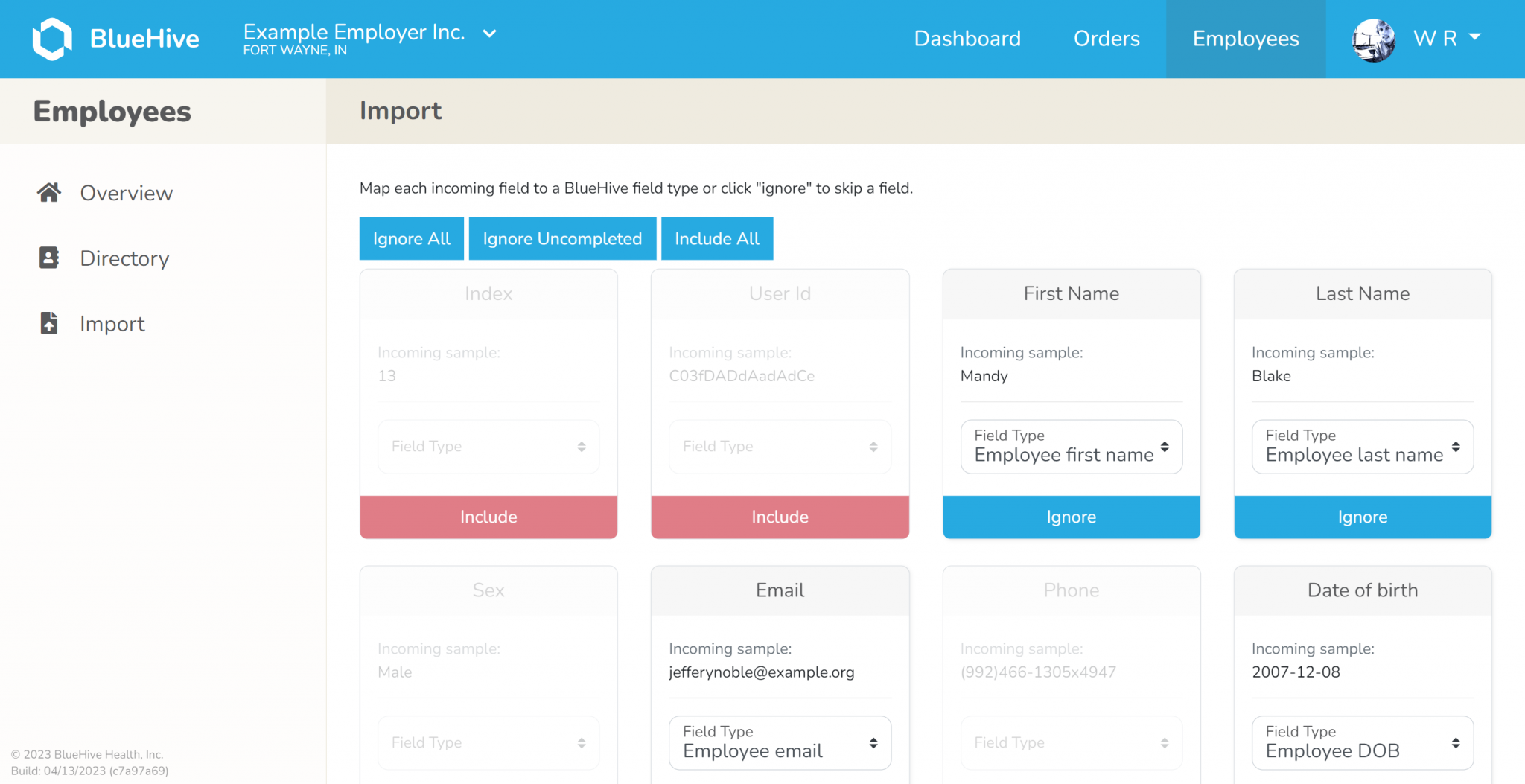
Review the incoming data in the preview window. Click "Ignore" for any data you wish to exclude, or use "Include" if you accidentally omit something important.
Step 6: Map Your Fields
Ensure all column headers in your CSV file align with the relevant BlueHive fields. A sample of the incoming data will assist you in this mapping process.
Step 7: Confirm and Import
Once satisfied with your field mappings, click "Import" to initiate the import of your employee data into BlueHive.
Congratulations! You've successfully uploaded your CSV data, streamlining your employee management on BlueHive.